Data Transfer with Globus#

1. Setting Up Your Globus Account#
1.1 Create or Use a Globus Identity#
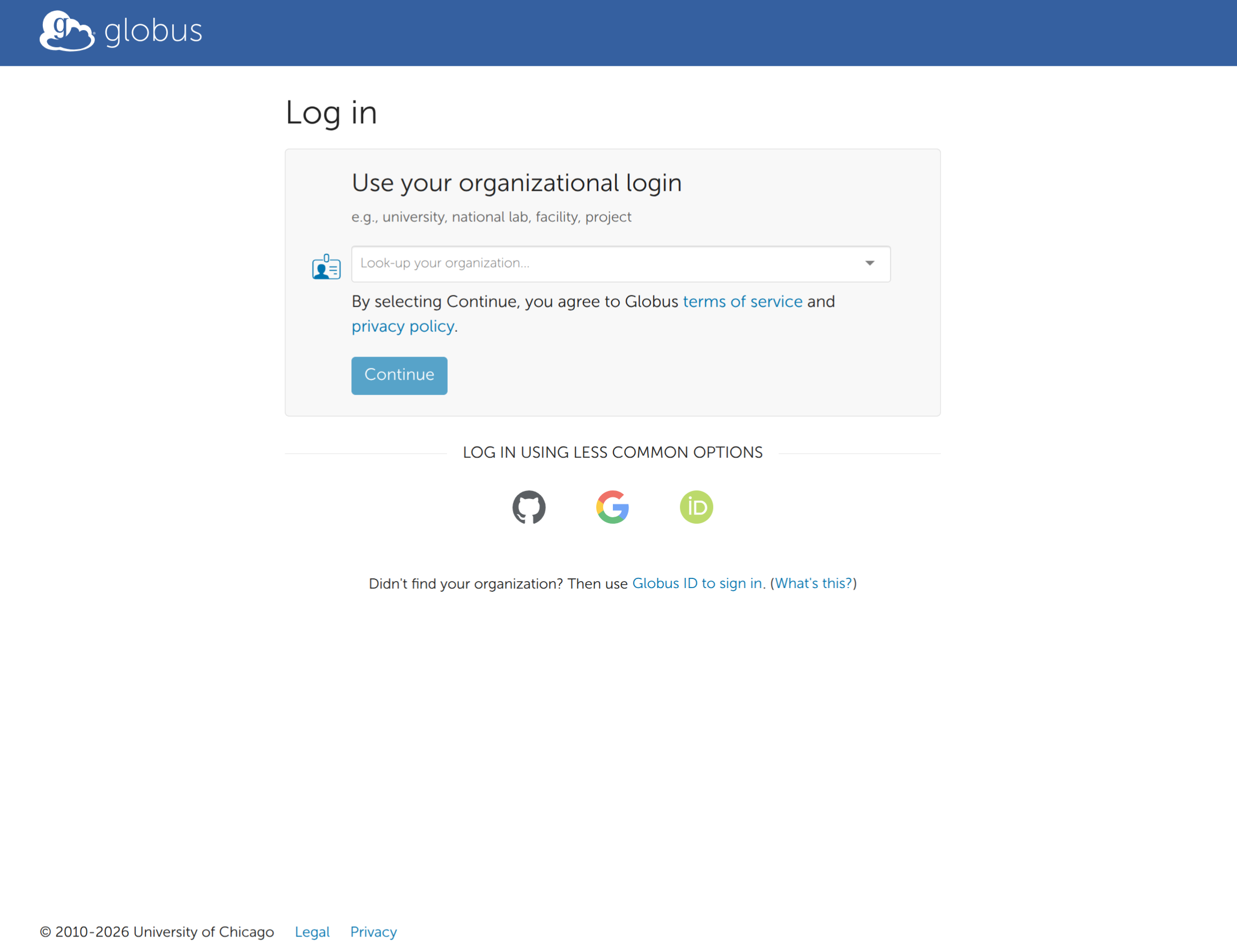
-
Go to the Globus Application website: https://app.globus.org.
-
In the list of identity providers, select your institution (e.g., CNRS). You will be redirected to your organization's authentication system to log in.
-
If your organization does not appear in the list, you can choose ORCID to sign in, or create a Globus ID using your professional or personal email address.
1.2 Understanding the Concept of Collections#
Once logged in, you will be taken to the Globus dashboard. Every transfer requires at least two collections: a source and a destination. In the context of the IFB Core Cluster:
- The Cluster Collection: This is a dedicated transfer server that exposes projects directories (
/shared/projects/<project>) via Globus. It is managed by the IFB Core team.
| Globus IFB Core Cluster Collection | |
|---|---|
| Name | IFB CoreCluster Projects |
| UUID | e120d52f-bc9d-4596-9e20-b13026a112c4 |
| Owner | Gateway IFB Core Cluster |
- The Second Collection: This could be another computing or data production center connected to Globus (e.g., Synchrotron Soleil), or your personal computer via Globus Connect Personal.
2. Connecting to the Cluster Collection via the Web Interface#
2.1 Open the Globus File Manager#
On the Globus dashboard, click File Manager.
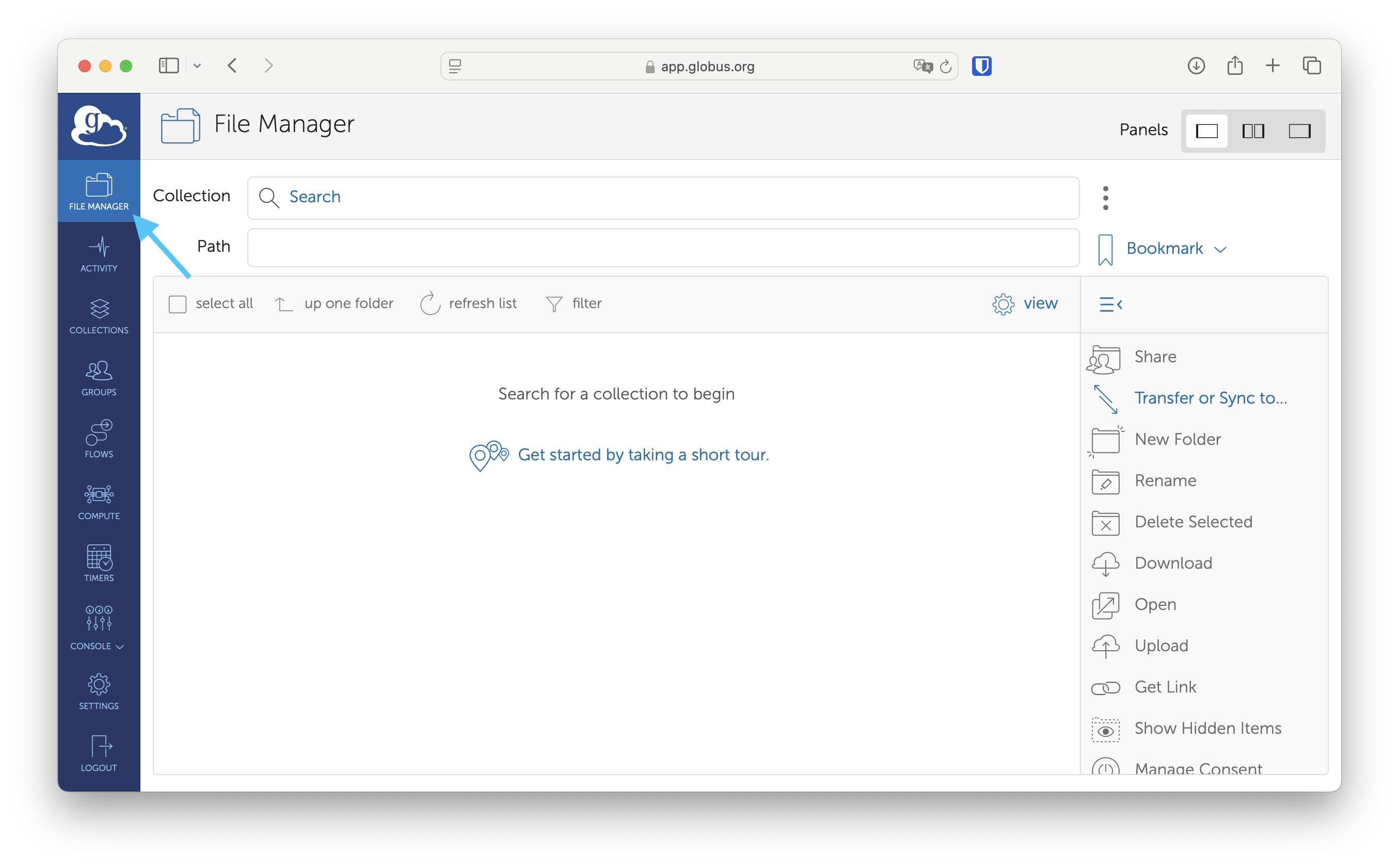
By default, the interface opens in a single-panel view. Click the Split pane icon in the top-right corner to display two panels side by side (source on the left, destination on the right). This view simplifies transfers using drag-and-drop.
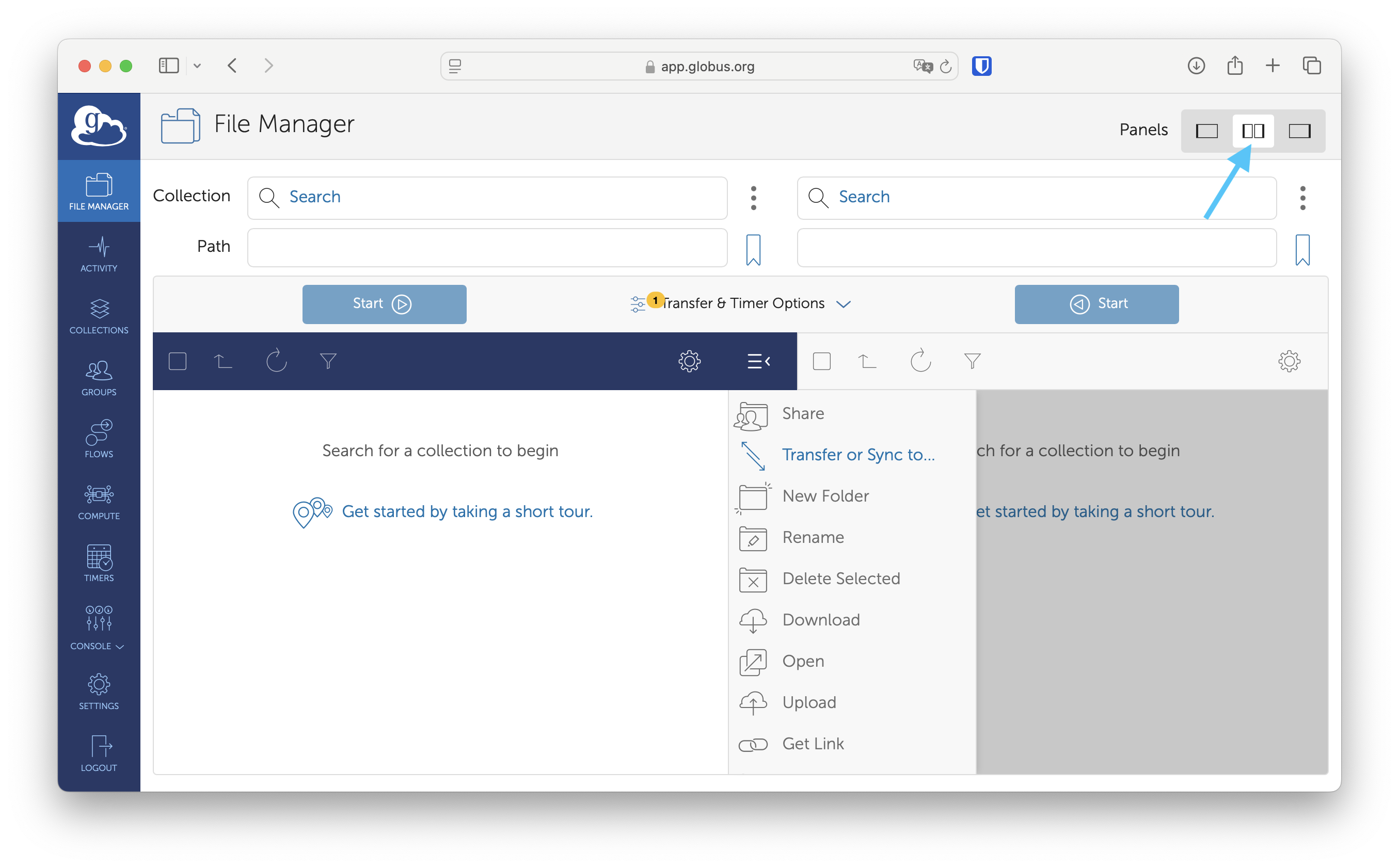
2.2 Search for the IFB Core Collection#
-
In the Collection text field of the left panel, type IFB Core.
-
Identify the correct collection in the list and select it.
-
Authentication Step: If you have not recently authenticated with this collection, Globus will require an authentication step.
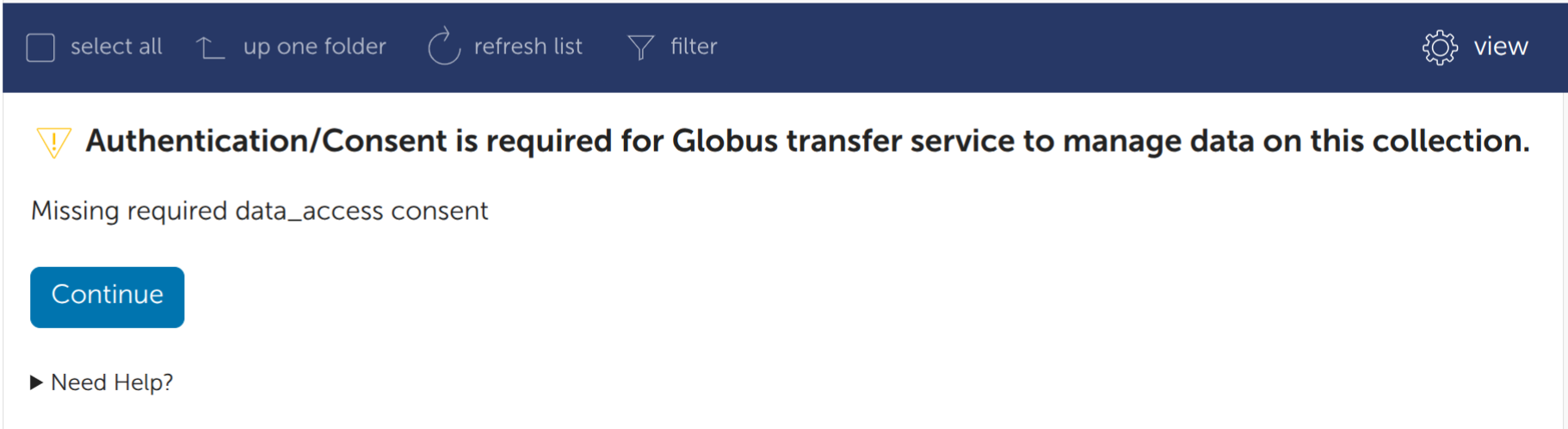
- Click Continue when prompted with "Consent Required".
- Select Link an OIDC Server IFB (globus-identity.f0330.bd7c.data.globus.org) identity
- Enter your IFB Core Cluster credentials
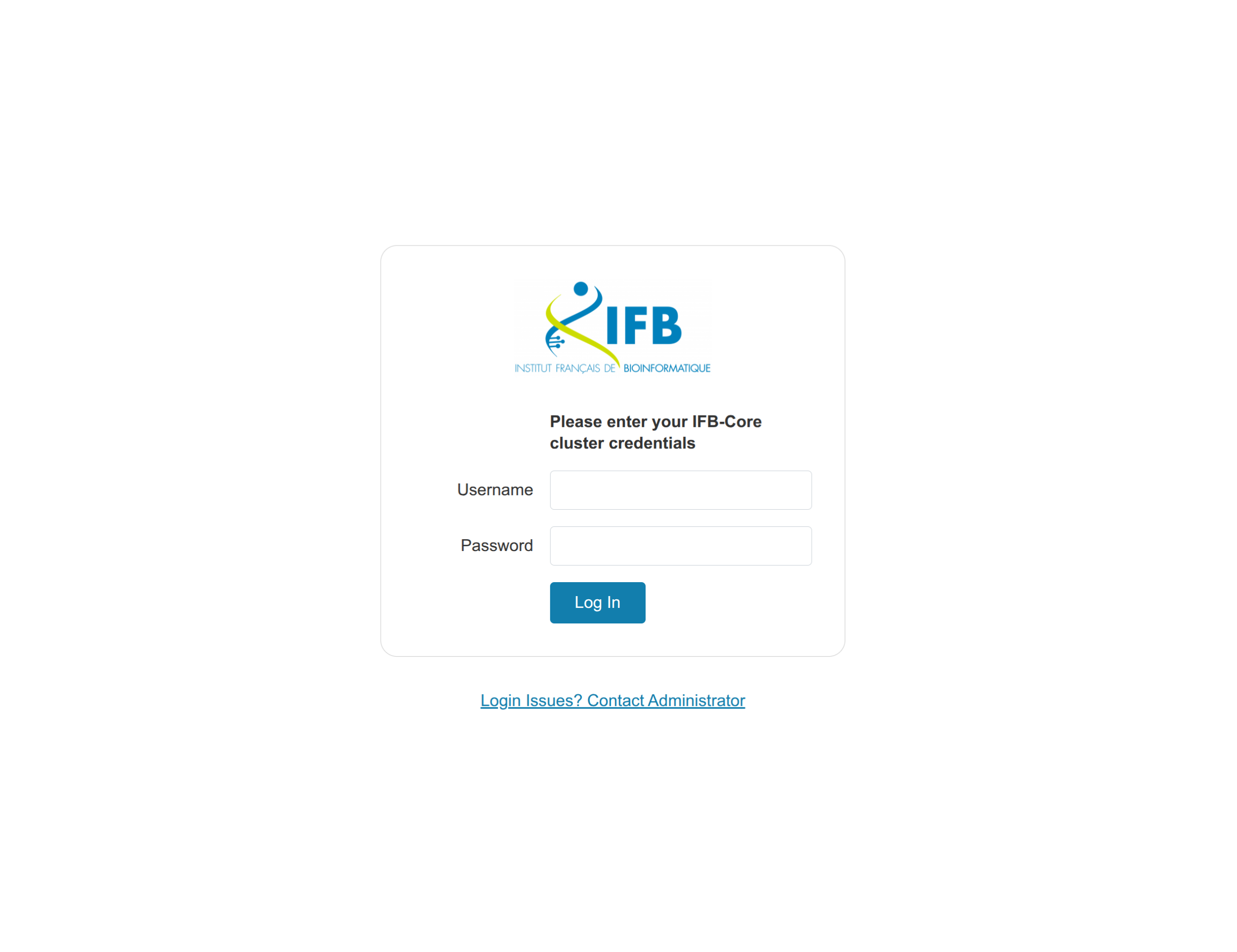
- If this is the first time you are using your IFB Core Cluster credentials on Globus, click Continue.
- Confirm the access request by clicking Allow.
-
Accessing your files: After successful authentication, the file manager will display the projects directories (
/shared/projects/<project>) on the cluster.- WARNING! Even if you see the projects directories, the current directories are located in the root directory of the collection (i.e
/). - You can navigate to other directories (e.g.,
/<project>) by clicking the directory name or typing the path directly into the Path field.
- WARNING! Even if you see the projects directories, the current directories are located in the root directory of the collection (i.e
2.3 Select a Second Endpoint and Initiate a Transfer#
In the right panel, define your second endpoint. This could be another computing center, a cloud storage service (e.g., Google Drive, Box, or OneDrive), or your personal computer via Globus Connect Personal.
-
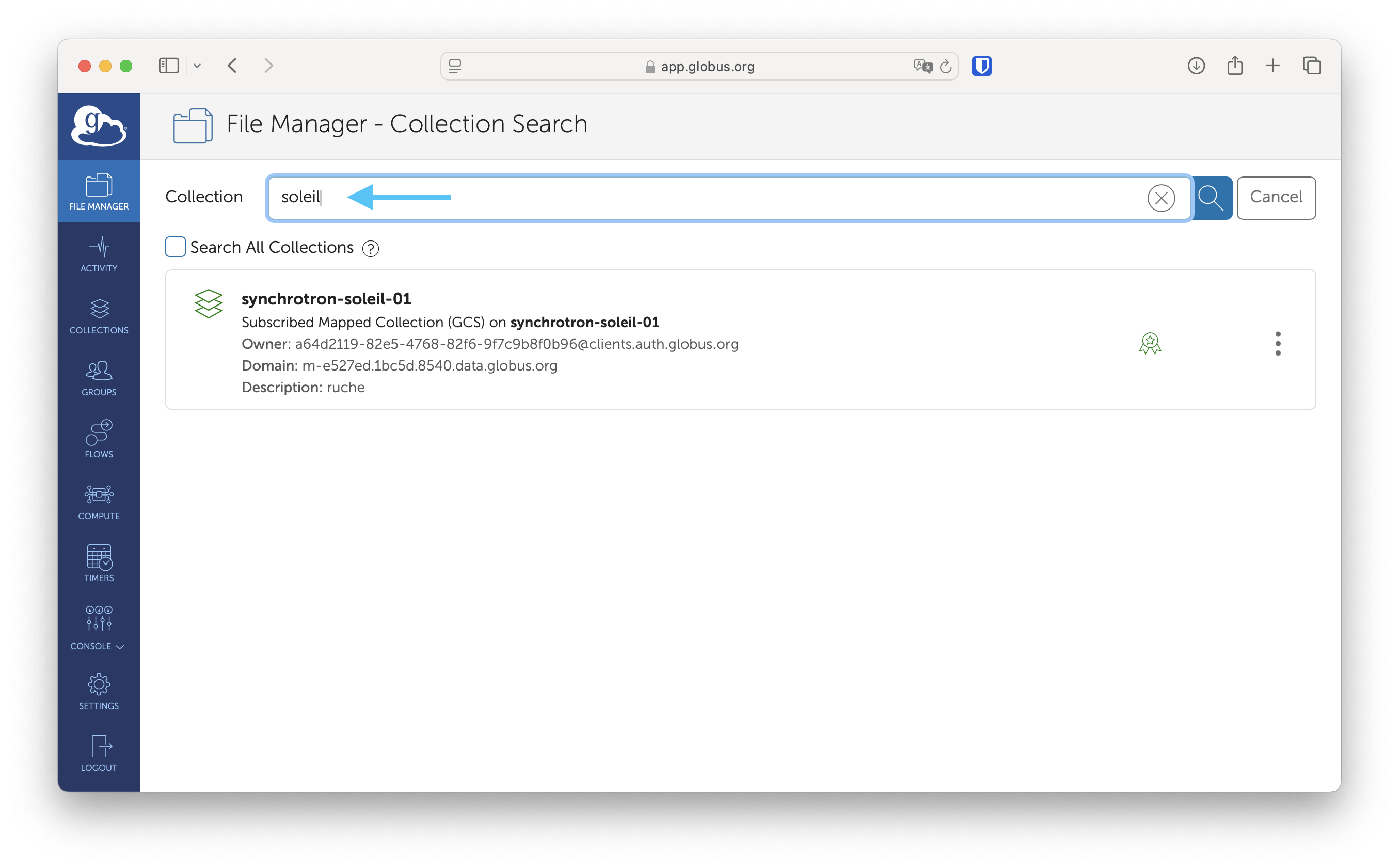
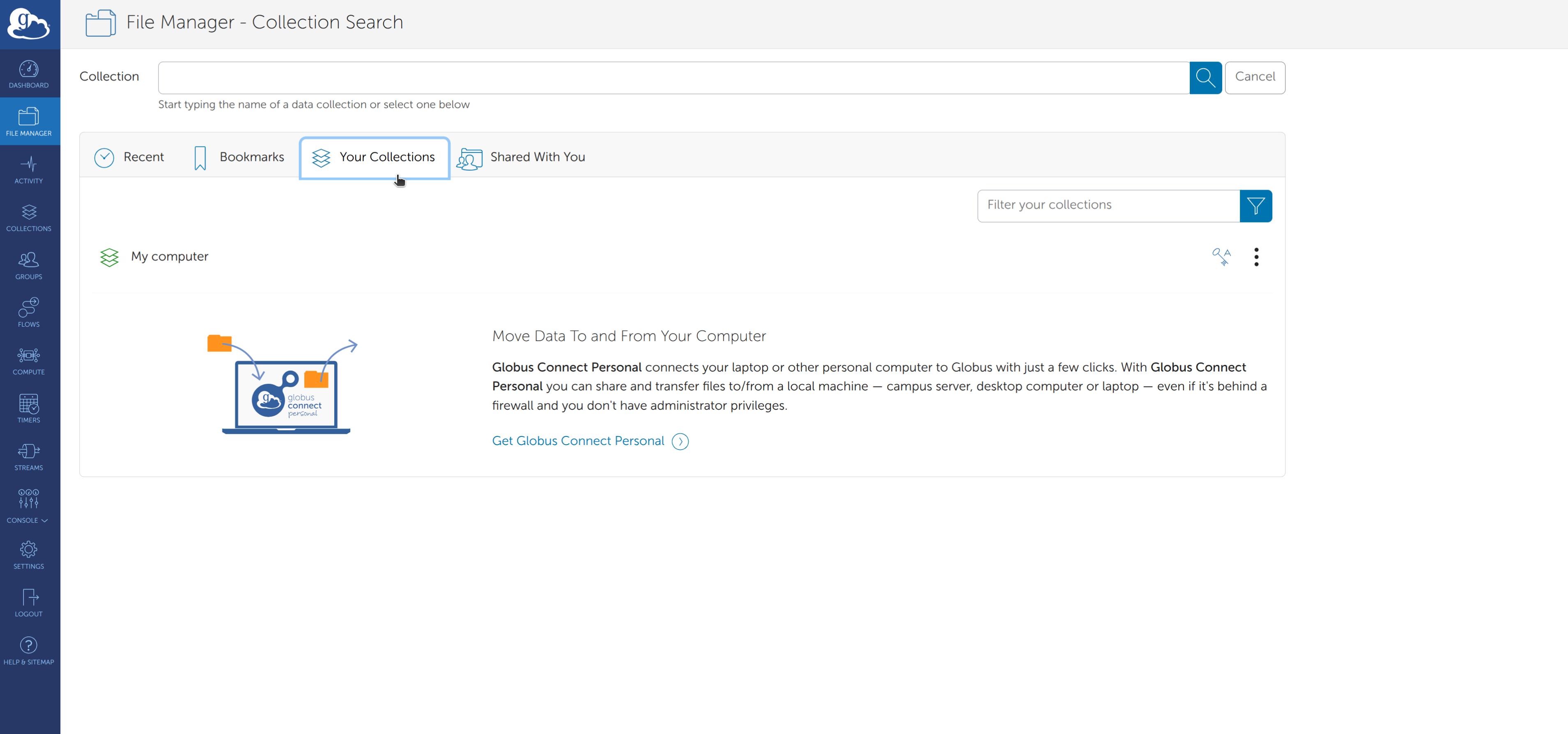
Click the Collection field and select your second endpoint.
- Select a mapped collection
- Select a personal collection
-
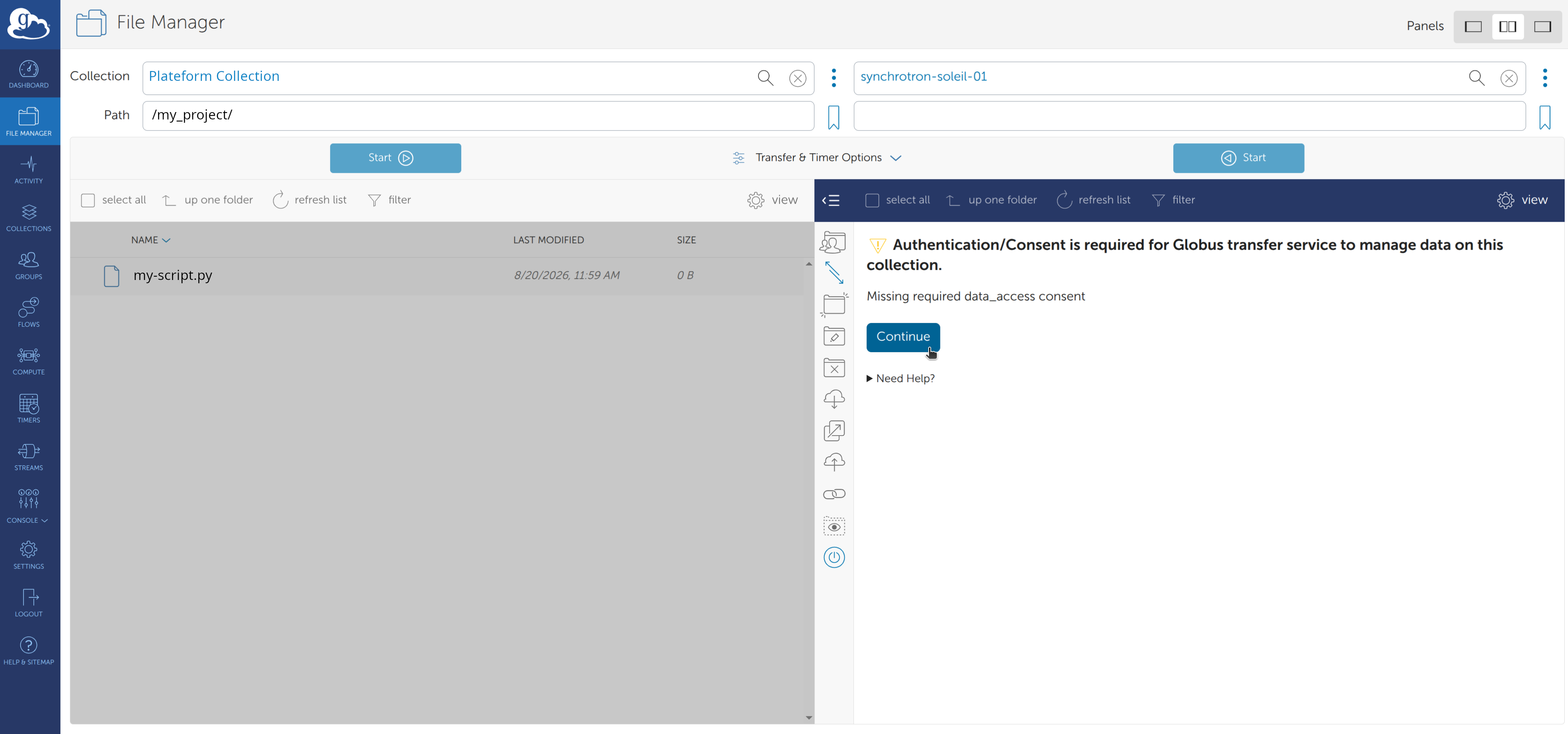
Authentication Step: If you have not recently authenticated with a mapped collection, Globus will also require an authentication step.
-
Navigate to the desired destination folder.
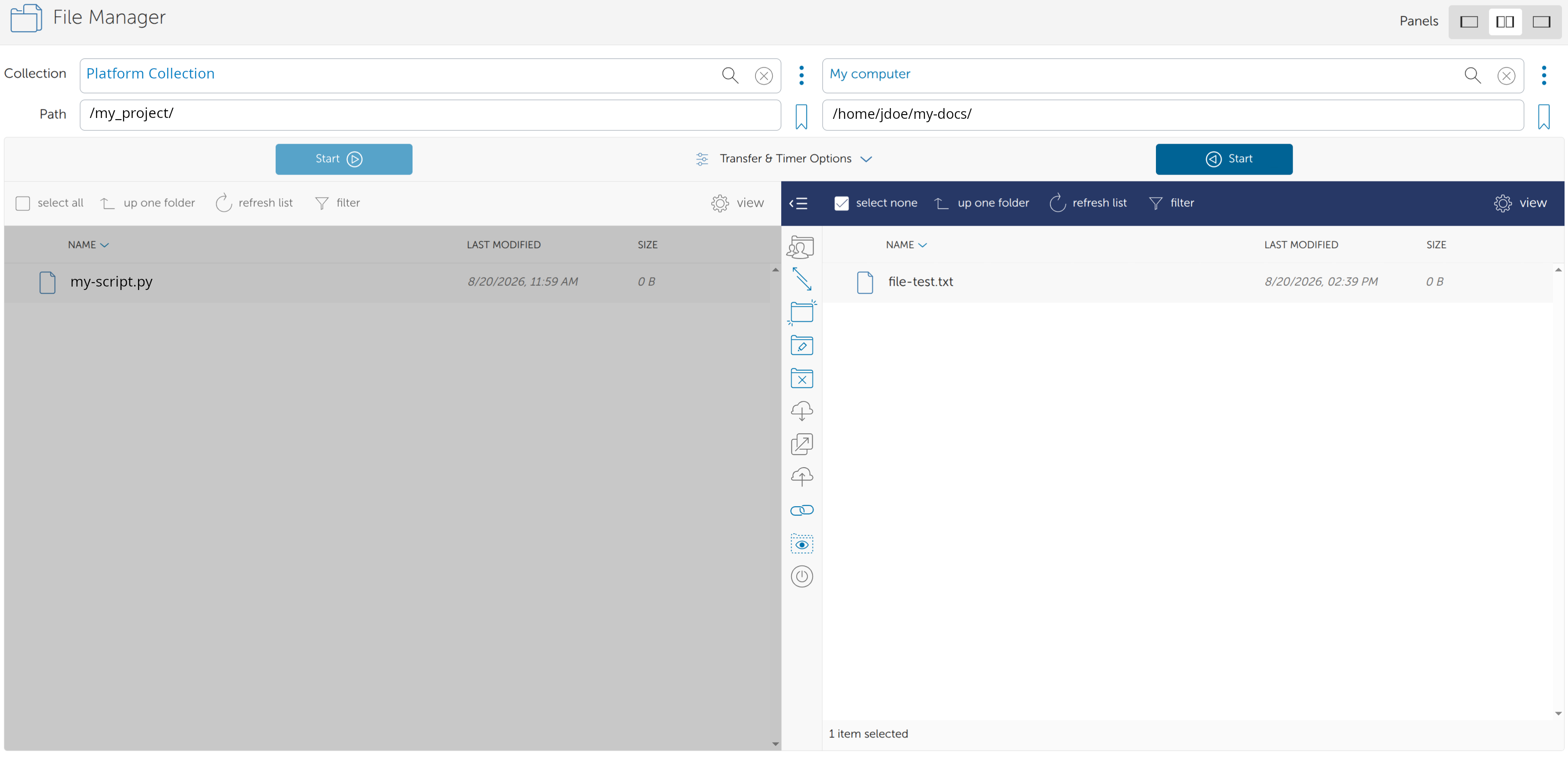
-
Select the files or directories you want to transfer in the left panel.
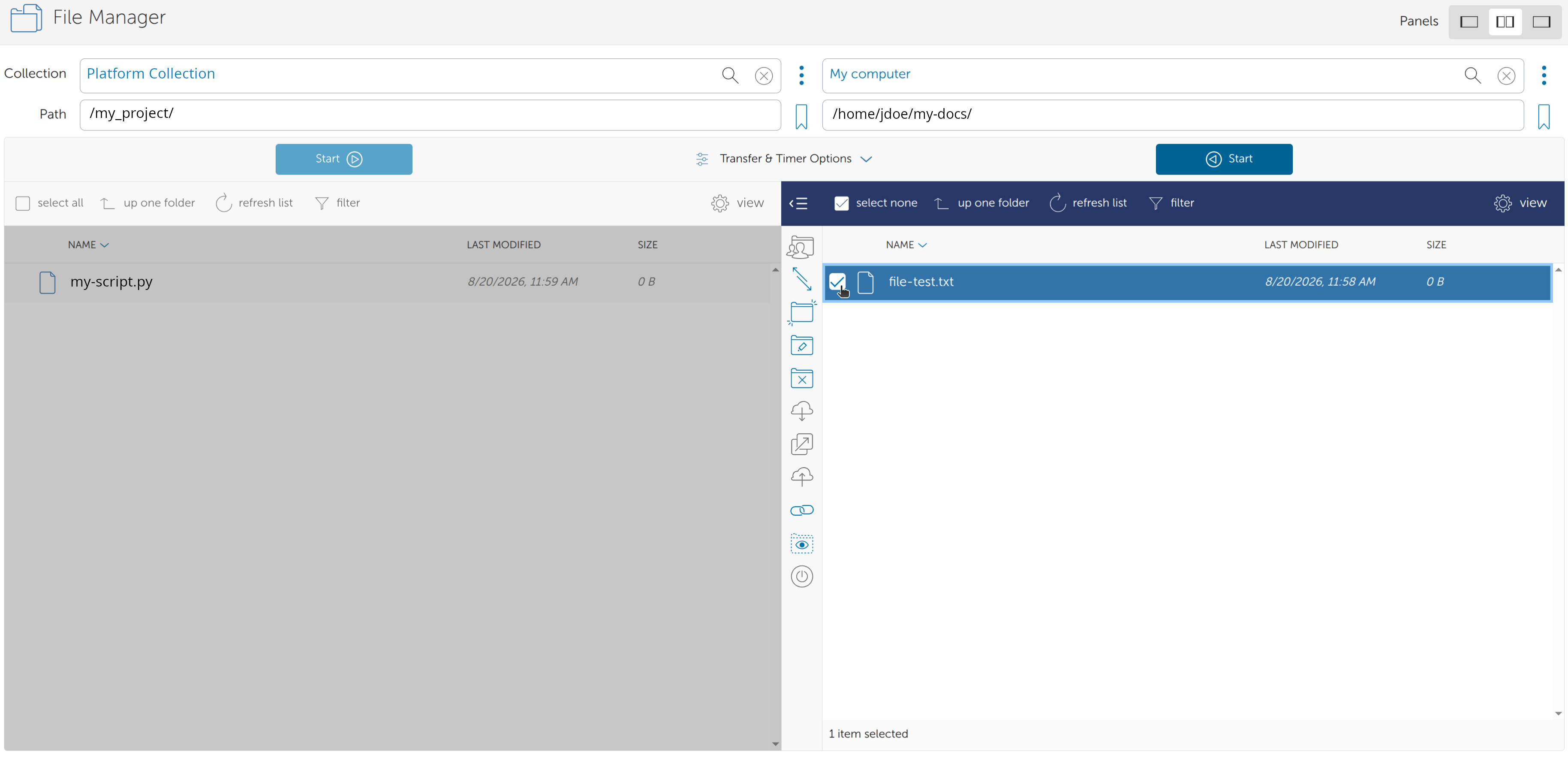
-
Click Start or drag the items to the right panel.
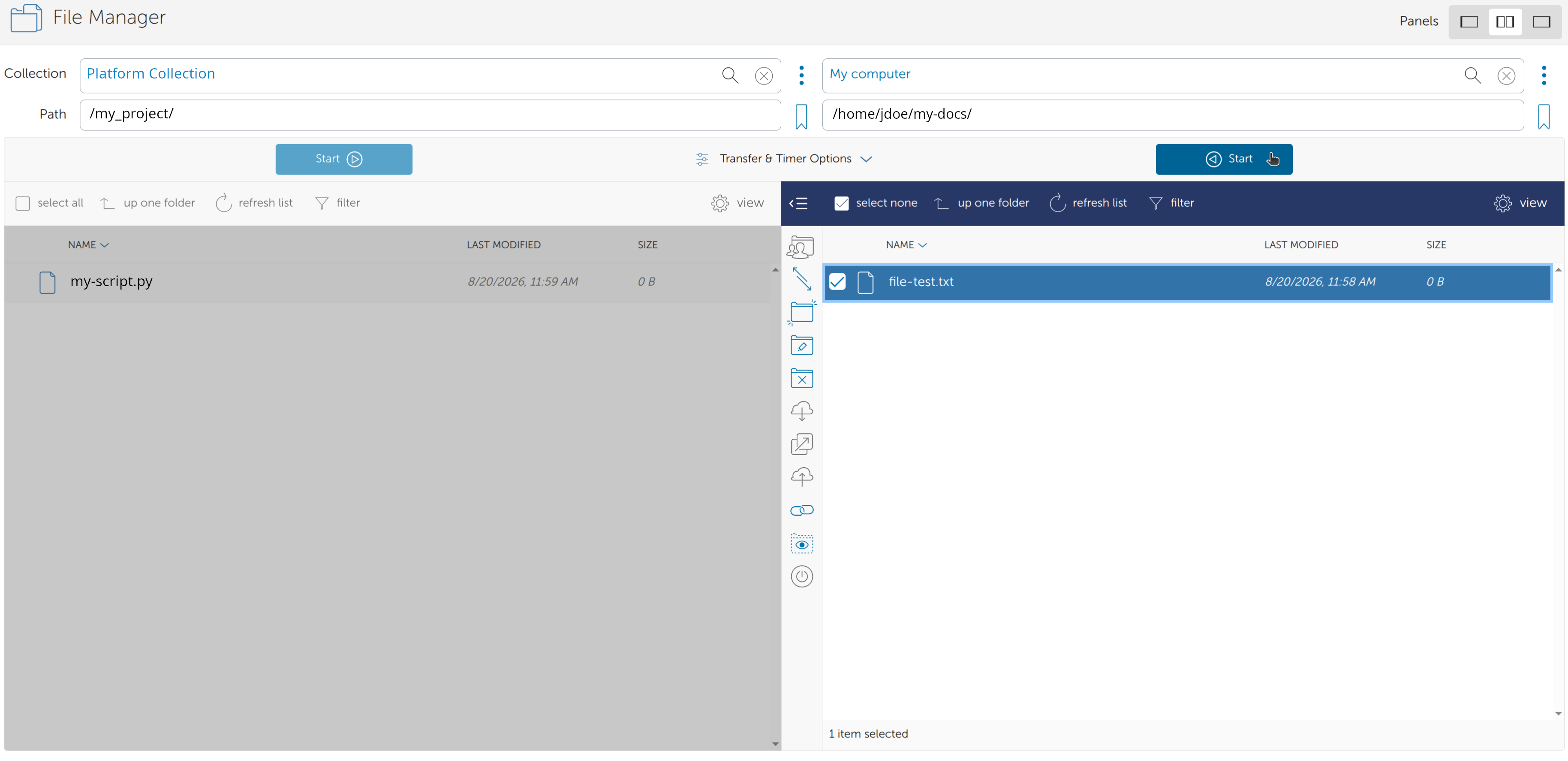
-
Globus will display a summary window with transfer options (e.g., integrity verification, encryption).
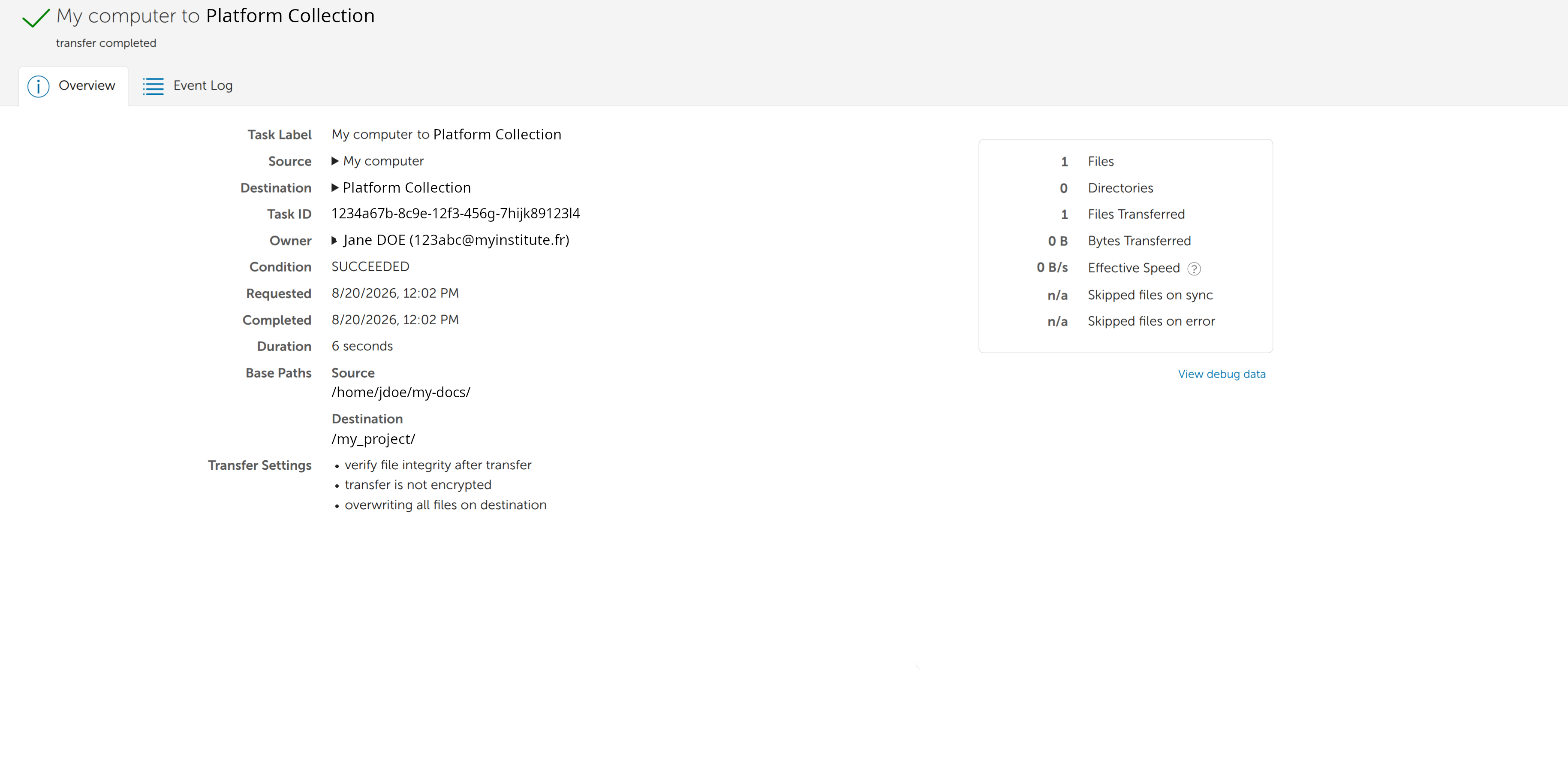
3. Using Globus Connect Personal#
3.1 Why install Globus Connect Personal?#
Globus Connect Personal (GCP) is a free tool that turns your personal computer (Windows, macOS, or Linux) into a Globus collection. Although optional, it allows you to transfer files quickly and securely between your personal computer and the cluster.
3.2 Download and Installation#
-
Visit the GCP download page.
-
Choose your operating system: macOS, Windows, or Linux
-
Run the installer.
- For Linux: Extract the archive and run the
globusconnectpersonalbinary.
- For Linux: Extract the archive and run the
-
After installation, open the application.
3.3 Configuring the Local Collection#
-
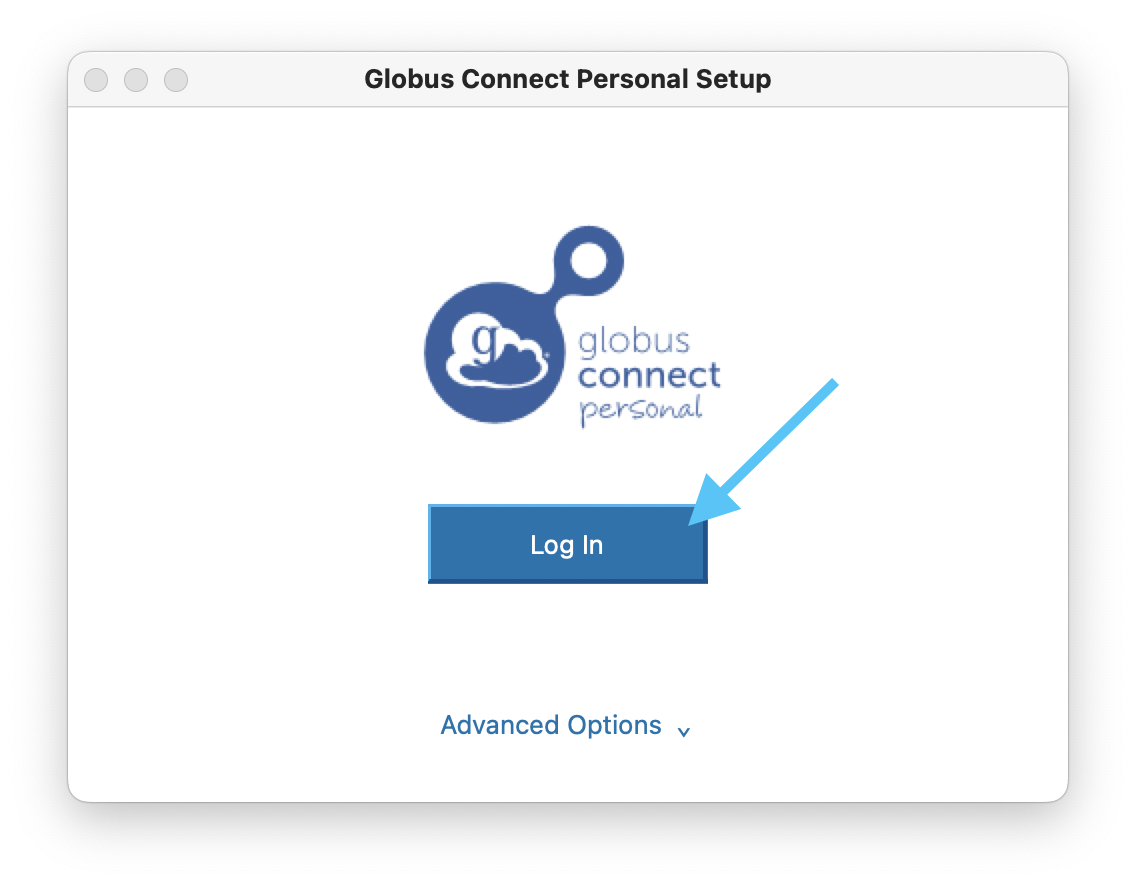
Click Log In to sign in. A browser window will open for you to authenticate.
-
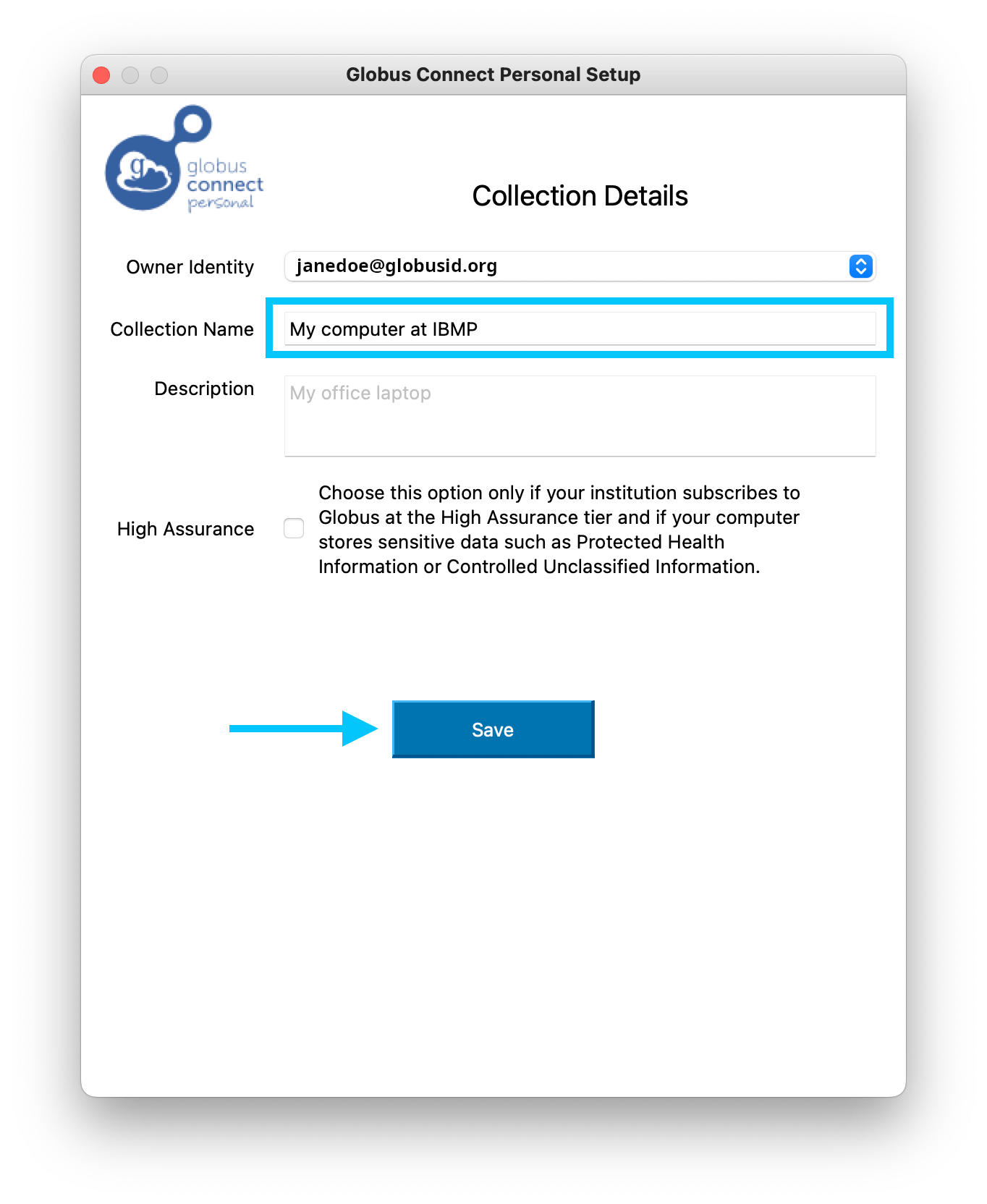
Give your local collection a name (e.g., "My PC").
-
In the Preferences or Access menu, select the folders on your computer that you want to share.
-
A Globus icon will appear in the menu or notification bar, indicating that the collection is active.
3.4 Using the Local Collection in the Web Interface#
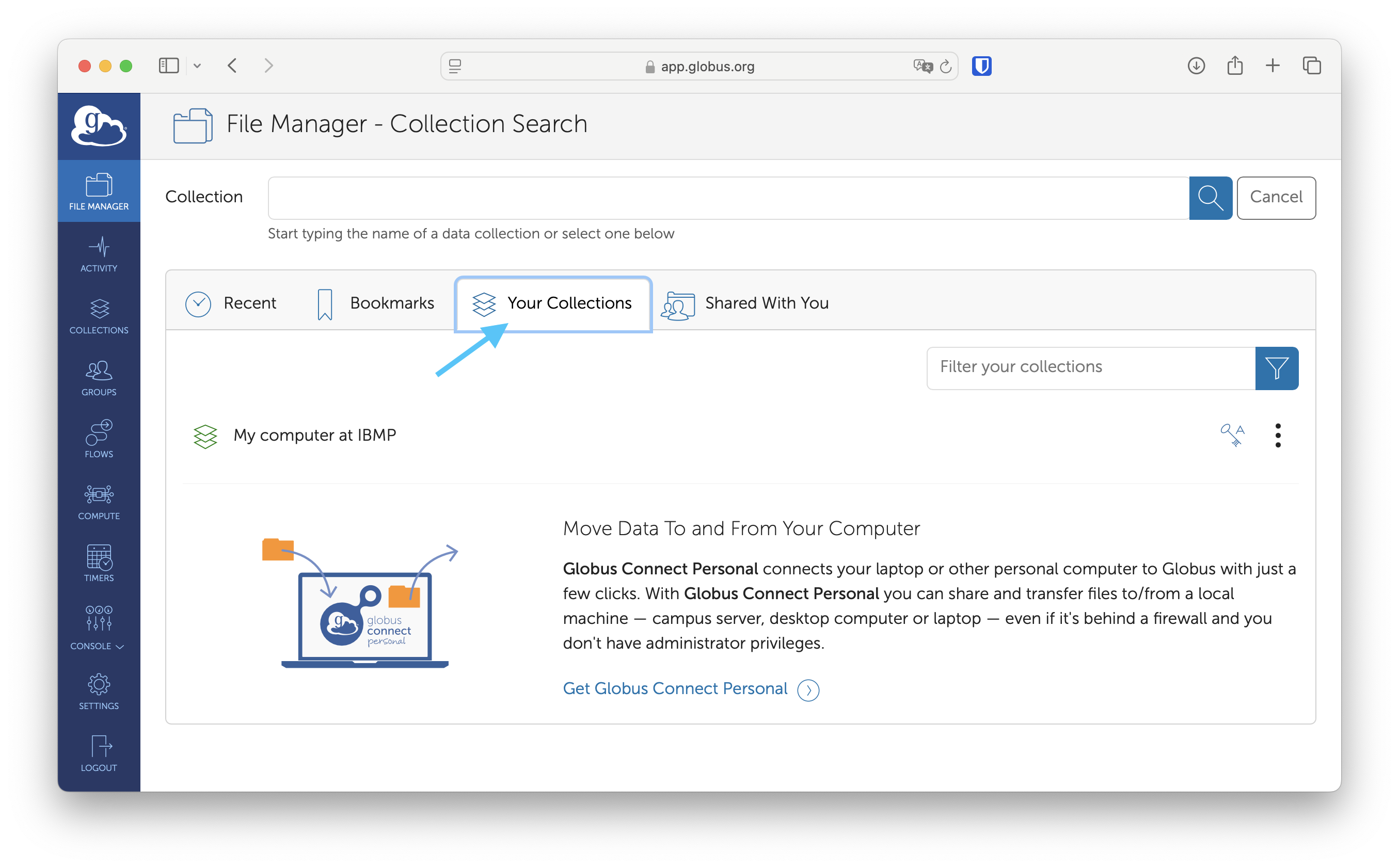
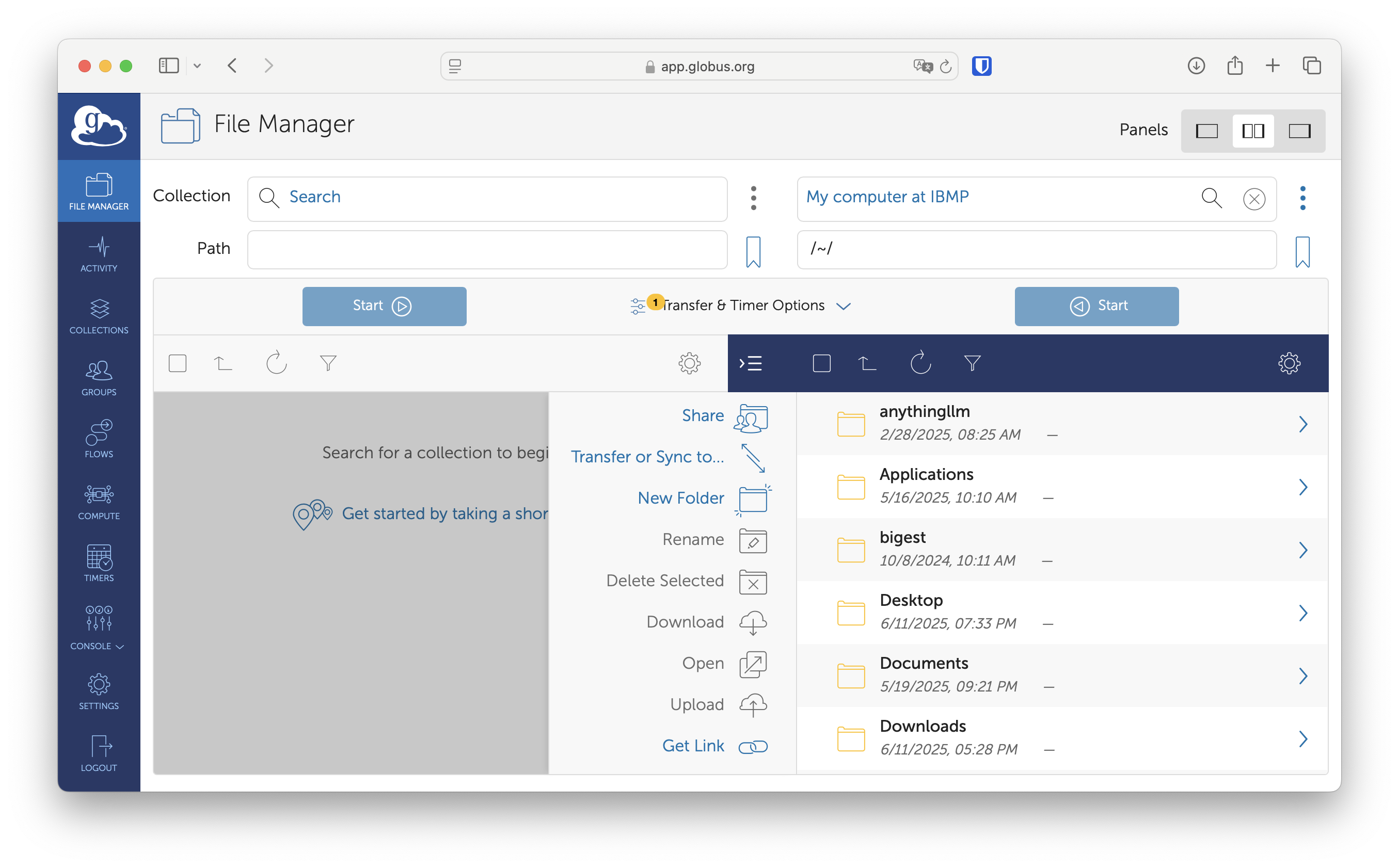
In the Globus File Manager, search for your local collection and use it as either the source or destination for transfers to and from the cluster.
4. Using the Globus CLI on the Cluster (Advanced)#
For advanced users, transfers can be automated using the command line. The IFB Core Cluster provides the Globus CLI. Here’s how to use it:
-
Log in to the Globus CLI
# Load the CLI module module load globus-cli # Log in to Globus globus login # This command will give you an URL for log in to Globus. # Copy and paste the URL into your web browser and follow the # on-screen instructions to obtain an authentication token. # Once you have obtained your authentication token, copy and # paste it into your terminal. -
Connect to the IFB Core Cluster Projects Collection
# Search for the IFB Core Cluster collection globus endpoint search "IFB CoreCluster Projects" # Note: The command displays the 'ID' column, which is the # unique identifier (UUID) for the collection. # Store the ID in a variable (example) export IFB_COLLECTION_ID=<RETURNED_ID> # Note: If you have not recently authenticated with this # collection, Globus CLI will require an authentication step. globus session consent "urn:globus:auth:scope:transfer.api.globus.org:all[*https://auth.globus.org/scopes/$IFB_COLLECTION_ID/data_access]" # List files in the collection's root directory globus ls "$IFB_COLLECTION_ID:/" -
Connect to your local collection using Globus Connect Personal - ⚠️ Warning: Globus Connect Personal must be installed and connected
# Store your collection name in a variable export MY_LOCAL_NAME="My computer" # Search for your local collection globus endpoint search "$MY_LOCAL_NAME" | grep "$MY_LOCAL_NAME" # Store the returned ID in a variable export MY_LOCAL_ID=<RETURNED_ID> # List files in your local collection's home directory globus ls "$MY_LOCAL_ID:~" -
Transfer files between the IFB Core Cluster Collection and your local collection
# Copy a file from the cluster to your computer
globus transfer \
    "$IFB_COLLECTION_ID:/my_cluster_project/folder/file.dat" \
    "$MY_LOCAL_ID:~/Downloads/file.dat"
# Once the command runs, it will return a message confirming
# whether the transfer has been accepted and whether a task
# has been created, along with a task ID.

# Monitor task progress
globus task list
The <COLLECTION_ID>:<path> argument used in transfer commands follows the syntax described in the Globus CLI documentation. Many other commands are available (e.g., directory creation, deletion, or sharing). For more examples, see the Globus CLI QuickStart guide.
Some usefuls Globus commands:
# Check your primary identity
globus whoami --verbose

# Information about which of your identities are in session
globus session show

# Logout of the Globus CLI
globus logout